Find Your Version
Knowing the version of dbWatch Control Center you are running is useful for troubleshooting, compatibility checks, and staying up to date with the latest features and fixes.
How to Check Your dbWatch Version
There are two simple ways to find out which version you are currently using:
Option 1: Application Header
When you launch dbWatch Control Center, the version number is displayed in the upper section of the main application window.
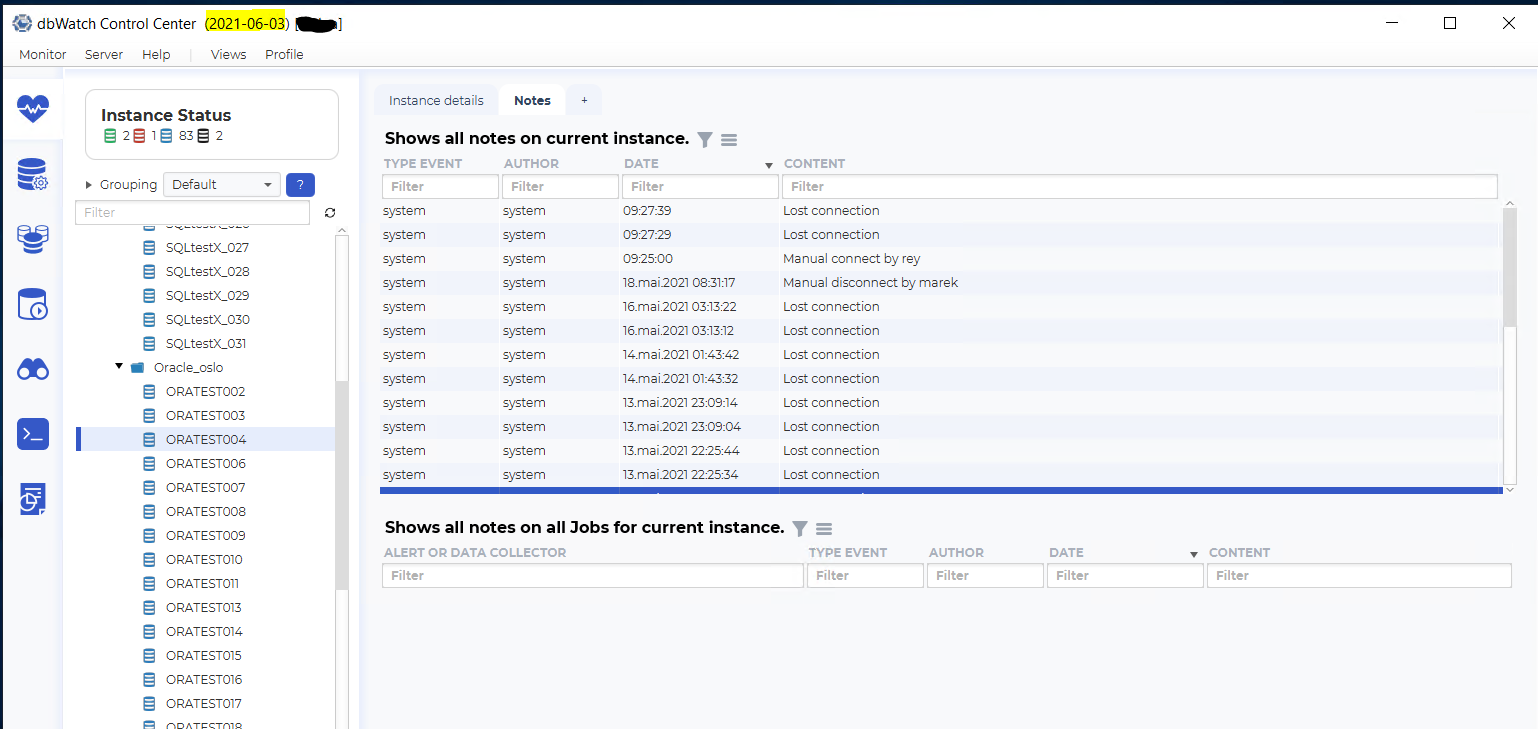
This is the fastest way to identify your version at a glance.
Option 2: Help > About dbWatch
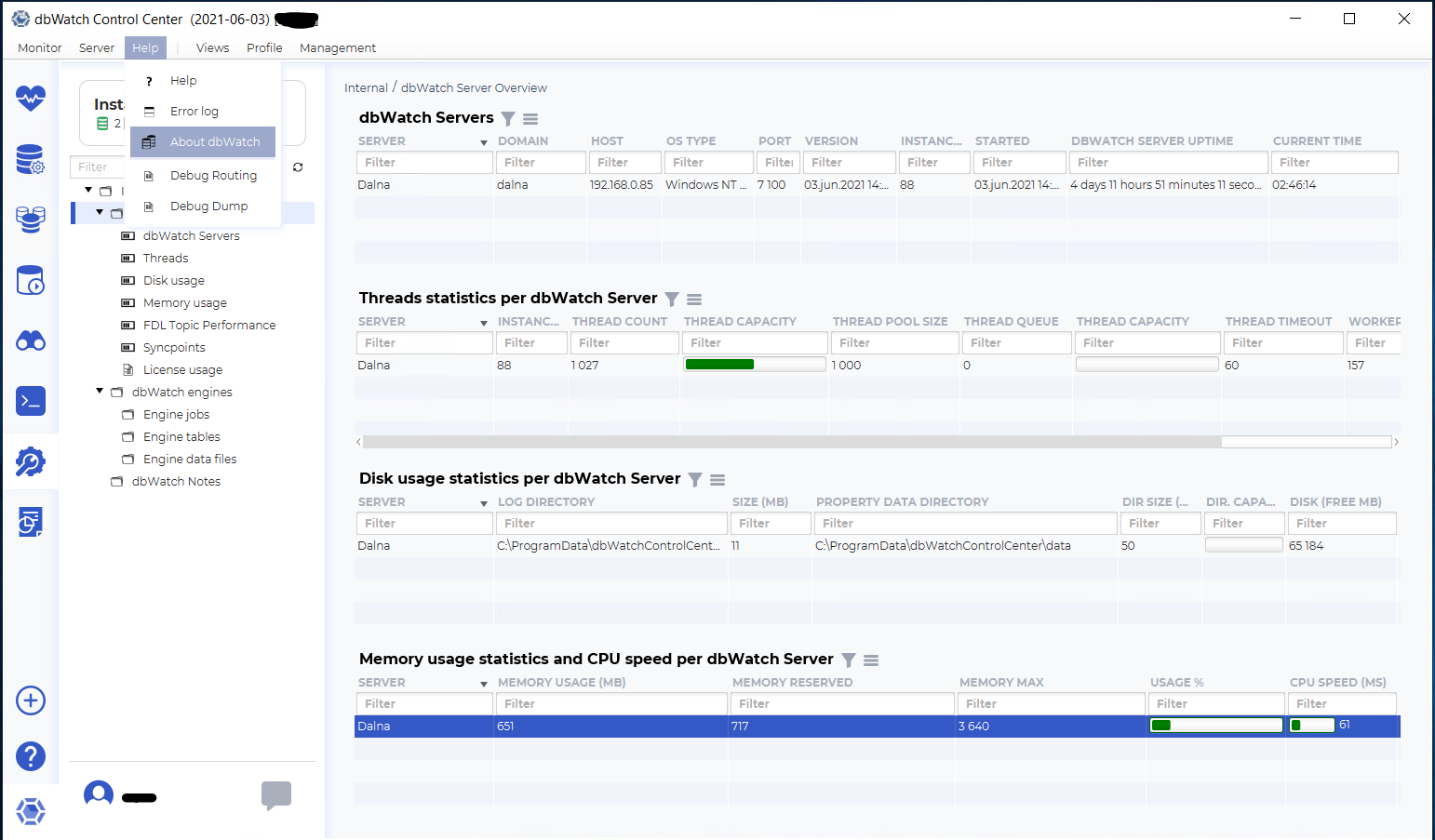
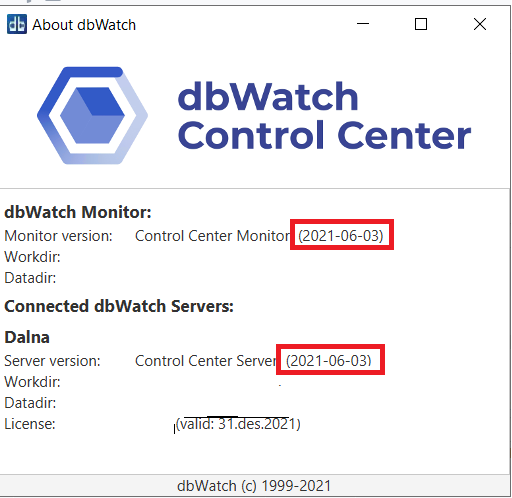
You can also access detailed version information via the application menu Help > About dbWatch.
This will open a dialog displaying full version information.
Understanding dbWatch Version Numbers
dbWatch version numbers follow a major.minor.buildnumber syntax.
Major is the last two digits of the release year.
Minor is the release number that year.
Buildnumber is an incrementing number in the build system.
So the example version 25.2.147 means this is the second release for 2025, and it is build number 147.
This approach makes it easy to determine the recency of your installed version.
Historical Versions & Release Notes
A full list of previous versions, release details, and notable changes can be found in the official release notes here:
This page is regularly updated and includes links to patches, feature summaries, and security-related changes.
When Might You Need This?
- Troubleshooting and support requests
- Verifying compatibility with packages or features
- Confirming if you’re running the latest version
- Matching your setup with environments in documentation or video tutorials
If you’re not on the latest release, or unsure whether to upgrade, feel free to contact support@dbwatch.com for guidance.