Instance Configuration
How to get here
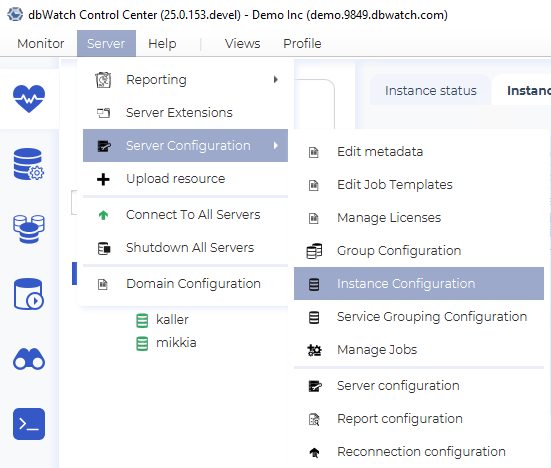
Instance Configuration can be accessed by going to Server > Server Configuration > Instance Configuration, or by right-clicking on an instance and selecting Configure Instance from the popup menu.
Main view
The instance configuration view consists of several parts. On the left side you see a tree are the list of your instances installed in CC. One the right pane, you can see the details of the highlighted instance. On the top are commands to add an instance, remove an instance, and uninstall an instance. You can also see the grouping filters.
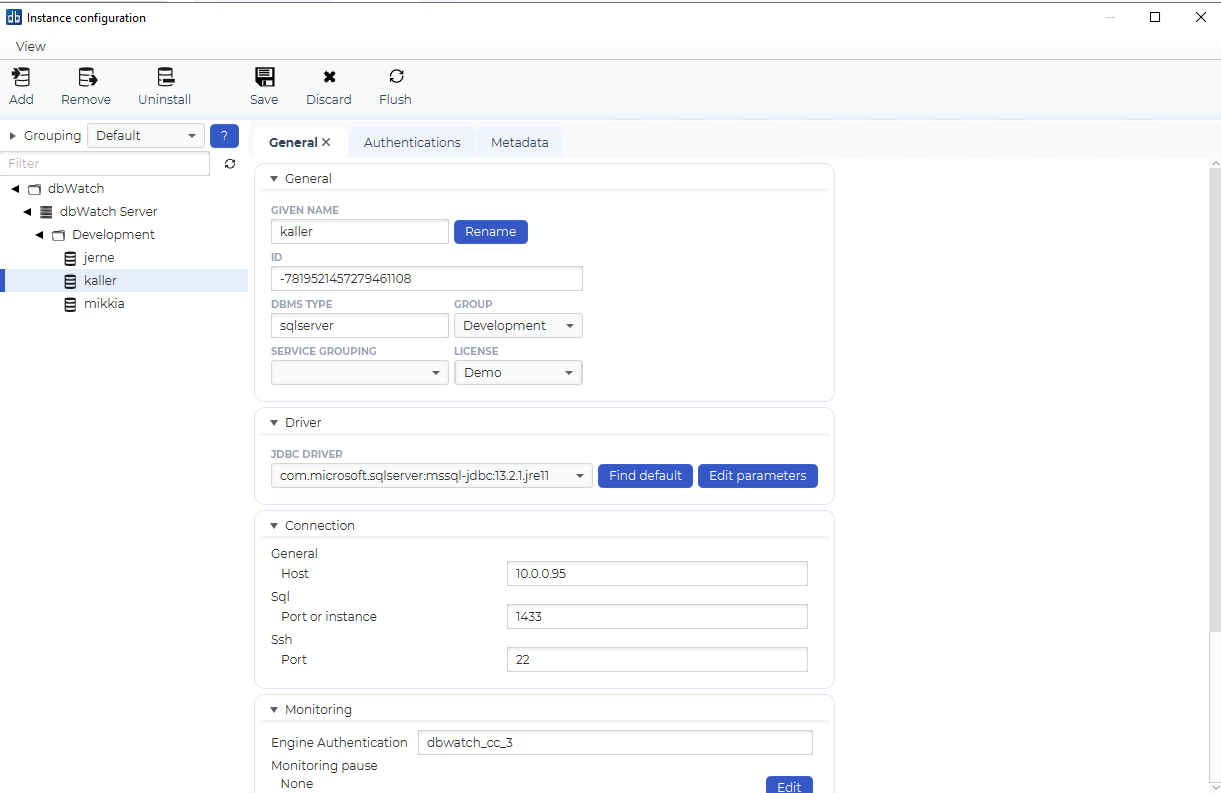
The configuration panel is again divided into 3 main tabs.
General
The first tab is General. This panel shows the Given name (named used to identify this instance in dbWatch), the DBMS type for the instance, and the group the instance is sorted under. The Driver panel specifies the jdbc driver used and lets you edit jdbc parameters ( read more ).The Connection panel shows connectivity details like host and port for the instance (this may vary a bit depending on the dbms type). Below this you have information about the database/schema used for monitoring ( read more ) and monitoring polling pauses. Then on the bottom you have information used by the management module.
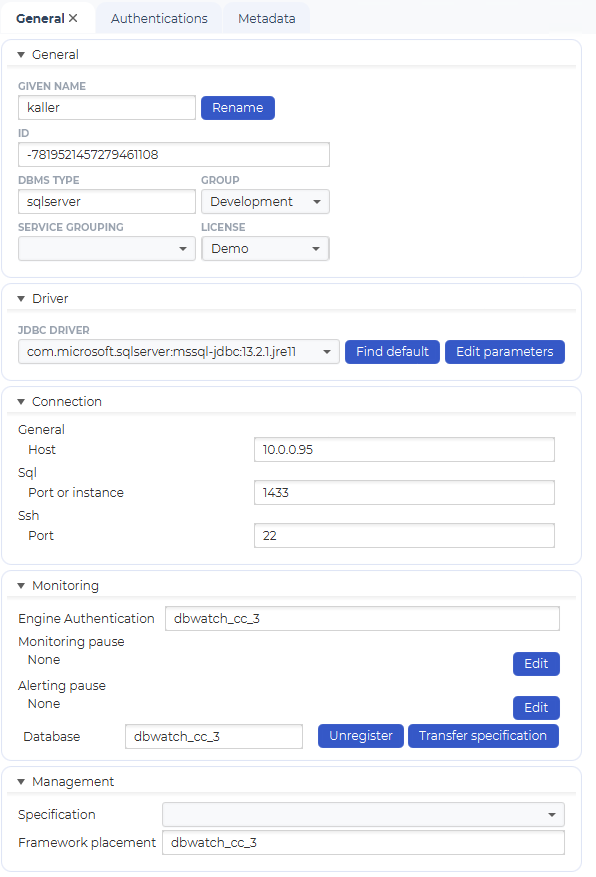
The information in these panels will also vary a bit depending on the dbms type.
Authentications
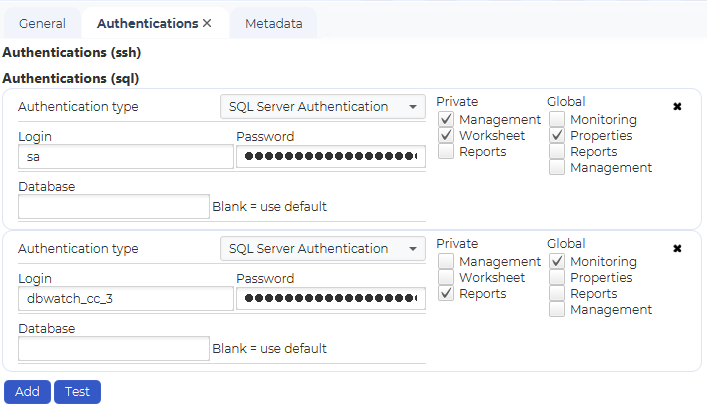
In the Authentications tab you can specify the authentications used for the different modules in dbWatch.
Management, Worksheet and Reports authentications under the Private column, are per Control Center user (changing these will only affect your user and not others using dbWatch).
Reports and Management authentications can also be specified globally, this will propagate the information to all users that do not have a private authentication defined.
The Monitoring and Properties authentications are Global authentications.
Metadata
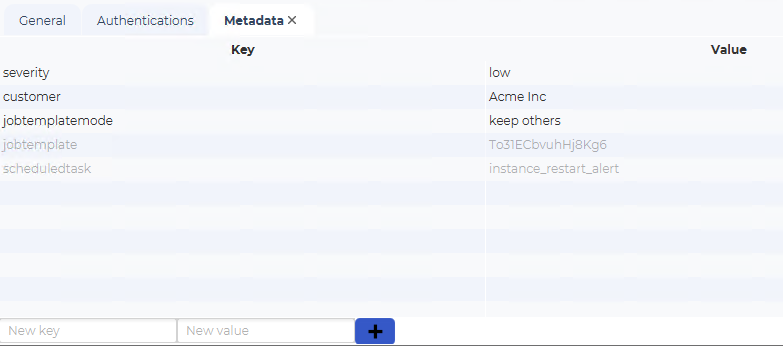
In the Metadata tab you can add/edit the metadata that is defined for this instance.