Webserver configuration
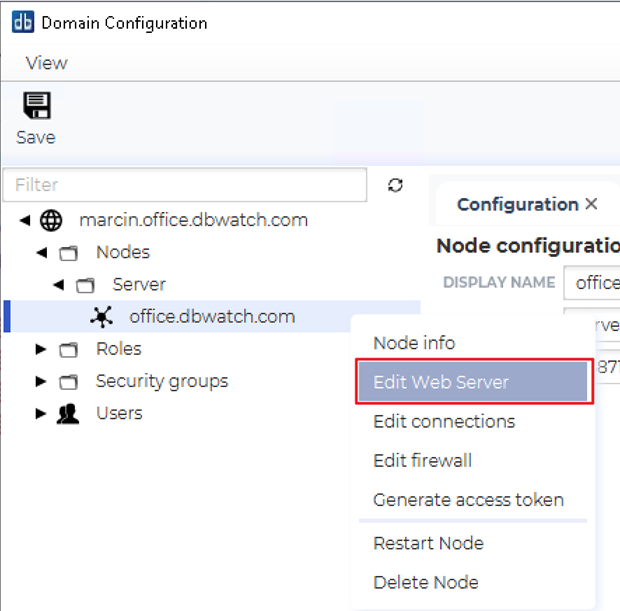
To enable the Web server, go to the “Server” → “Domain Configuration” menu.

Navigate to your domain — for example:
marcin.office.dbwatch.com > Nodes > Server.
Right-click on your domain server (e.g. office.dbwatch.com).
From the context menu, select Edit Web Server.
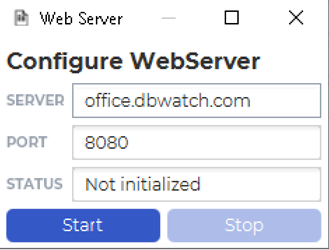
In this window, you can choose the port number that the dbWatch Web Server will use (port 8080 is used as an example).
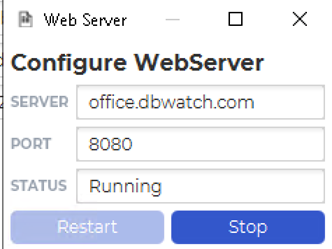
The Status field shows the current state of the web server.
Click Start to launch the web server.
From now on, the dbWatch Web Server will always start on port 8080 each time the dbWatch Server restarts.
If you need to change the port number, you must stop the Web Server, update the port setting, and then start the Web Server again.
Set Privileges for the dbWatch Server
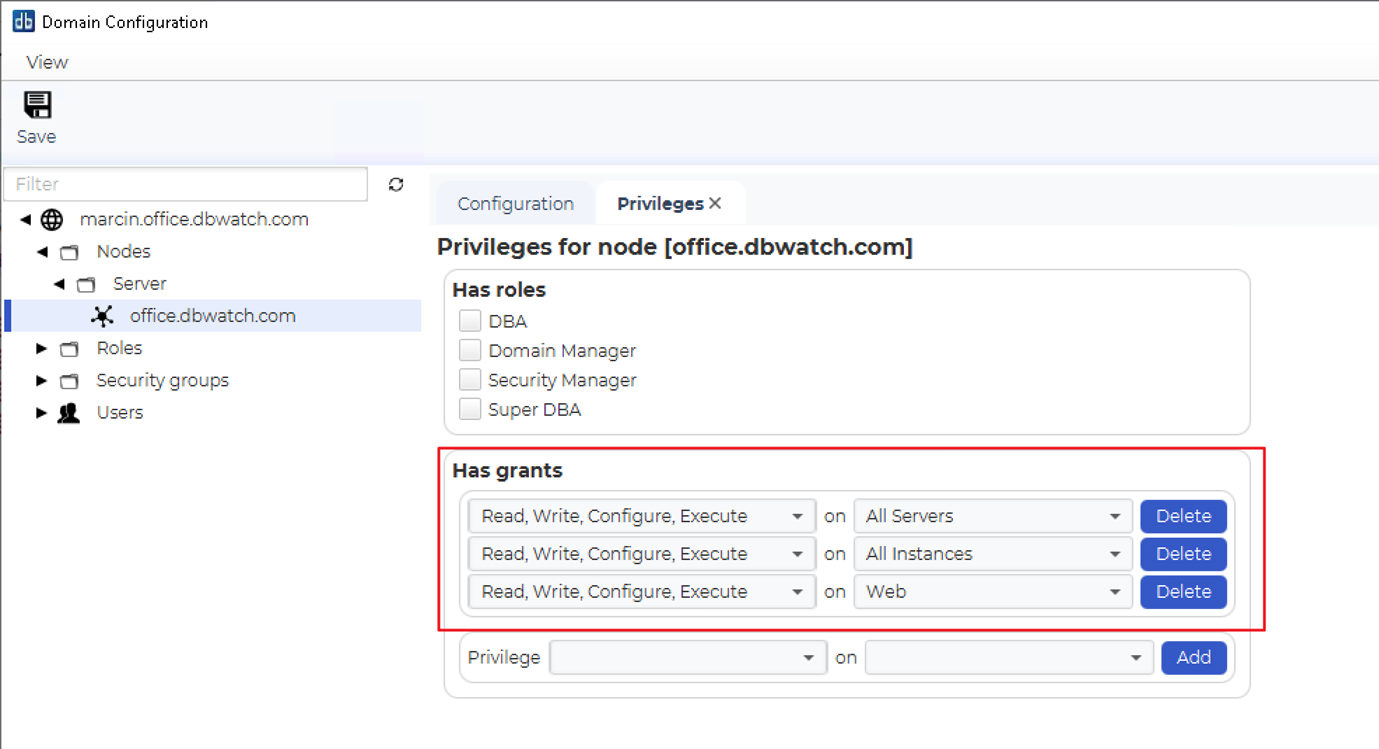
Go to the Privileges tab for your dbWatch server (for example, office.dbwatch.com).
In the Has grants section, assign the same privileges as shown in the image:
Read, Write, Configure, Execute on All Servers
Read, Write, Configure, Execute on All Instances
Read, Write, Configure, Execute on Web
Click Save to store the configuration.
The example will create a web server on http://localhost:8080
Mountable web pages
The following pages can be mounted on an url in dbWatch.